


iOS 18.5 Bugs? New Features to Try and How to Fix Common Update Issues
Apple released iOS 18.5 on May 12, 2025, delivering a mix of security patches, usability tweaks, and subtle new features to enhance the iPhone experience. While not as feature-packed as earlier iOS 18 updates, this release refines core apps and introduces practical tools for parents, travelers, and everyday users. With over 30 security fixes, including patches for critical vulnerabilities in WebKit and Core Bluetooth, updating is essential, per Apple Support. However, some users report issues like sluggish performance or app crashes post-update. Below, we highlight five standout iOS 18.5 features to explore and provide a troubleshooting guide to resolve common problems, ensuring you get the most out of your iPhone.
iOS 18.5 Features to Check Out
These features, available on iPhone XS and later, bring convenience and customization to your device –
1. Pride Harmony Wallpaper
Celebrate Pride Month with the new Pride Harmony wallpaper, which features vibrant, animated stripes that shift when you lock, unlock, or tilt your iPhone. Available for iPhones and iPads, it matches Apple’s 2025 Pride Collection, including a new Apple Watch band.
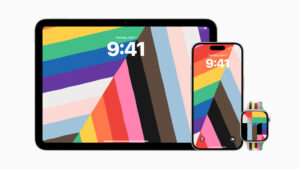
Source: Apple
Why Try It: The dynamic animation adds a personal, expressive touch to your Lock Screen, reflecting Apple’s commitment to inclusivity.
How to Use: Go to Settings > Wallpaper > Add New Wallpaper, select Pride Harmony, and customize its appearance.
2. Satellite Messaging for iPhone 13
iOS 18.5 extends carrier-provided satellite messaging to all iPhone 13 models (13, 13 mini, 13 Pro, 13 Pro Max), enabling texting without cellular or Wi-Fi via partners like T-Mobile with Starlink, per Apple Support. Previously limited to iPhone 14 and later, this feature is a game-changer for remote areas.
Why Try It: Send texts or share locations in off-grid locations, ideal for hikers or travelers.
How to Use: Ensure your carrier supports satellite (check Settings > Cellular > Satellite). If available, a “SAT” icon appears in the status bar. Test in an open area with a clear sky.
3. Screen Time Alerts for Parents
Parents using Screen Time can now receive notifications when a child enters the correct passcode to bypass restrictions. This enhances parental control over app usage and screen time limits.
Why Try It: Stay informed about your child’s device activity, ensuring safer digital habits.
How to Use: Enable in Settings > Screen Time > Family, then set up restrictions. Alerts appear in Notifications when the passcode is used.
4. Mail App Improvements
iOS 18.5 refines the Mail app’s redesigned interface from iOS 18.2, adding in-app toggles for Contact Photos and Group By Sender. You can also swipe to “All Mail” for a chronological view, bypassing categories like Primary or Promotions. Clean out more kinks and maybe a lot more ios users may switch from their trusted gmail account to Mail App.
Why Try It: Customize your inbox for faster email navigation, especially if you disliked the categorized layout.
How to Use: Open Mail, tap the three-dot menu in the top-right corner, and toggle “Show Contact Photos” or “Group By Sender.” Swipe right on categories for “All Mail.”
5. Buy with iPhone in Apple TV App
Purchasing content on third-party devices (e.g., smart TVs) via the Apple TV app is now easier with the “Buy with iPhone” feature, per Apple Support. Authenticate purchases using Face ID or Touch ID on your iPhone.
Why Try It: Streamline buying movies or subscriptions without manual password entry on external devices.
How to Use: In the Apple TV app on a third-party device, select a purchase, and scan the QR code or follow prompts to confirm via your iPhone.
Read More: Android XR may revolutionise AR
Common iOS 18.5 Issues and How to Fix Them
While iOS 18.5 improves security and performance, some users report issues like sluggishness, app crashes, or notification glitches, per SimplyMac and Reddit feedback. Here’s how to troubleshoot the most common problems.
1. Sluggish Performance or Overheating
Some iPhones, especially iPhone 15 Pro Max, may feel slow or overheat during charging. My iphone 16 has been going off for sure.
Fixes:
-
Restart Device: Press and release volume up, then volume down, then hold the side button until the Apple logo appears.
-
Check Storage: Ensure at least 4GB free (Settings > General > iPhone Storage). Delete unused apps or media.
-
Disable Background App Refresh: Go to Settings > General > Background App Refresh and toggle off for non-essential apps.
-
Monitor Temperature: If overheating persists, avoid charging in hot environments and contact Apple Support.
2. App Crashes
Issue: Apps may crash due to compatibility issues with iOS 18.5.
Fixes:
-
Update Apps: Open App Store, tap your profile, and install updates.
-
Offload and Reinstall: Go to Settings > General > iPhone Storage, select the app, tap “Offload App,” then reinstall from the App Store.
-
Check for Beta Conflicts: If you used the iOS 18.5 beta, reset all settings (Settings > General > Transfer or Reset iPhone > Reset > Reset All Settings).
3. Notification Glitches
Issue: Notifications may drop oddly when cleared or fail to display.
Fixes:
-
Change Display View: Go to Settings > Notifications > Display As and switch between List, Stack, or Count to reset behavior.
-
Restart Notifications: Toggle off notifications for affected apps in Settings > Notifications, restart your iPhone, then toggle back on.
-
Update to Latest Version: Ensure you’re on the latest iOS 18.5 build (Settings > General > Software Update).
4. Safari Slowdowns
Issue: Safari may load pages slowly
Fixes:
-
Disable Advanced Tracking: Go to Settings > Safari > Advanced and toggle off “Advanced Tracking and Fingerprinting Protection.”
-
Clear Cache: In Settings > Safari, tap “Clear History and Website Data.”
-
Force Quit Safari: Double-tap the Home button (or swipe up on newer models) and swipe Safari away, then relaunch.
5. Battery Drain
Issue: Some users report a slight battery health drop (1%) post-update.
Fixes:
-
Check Battery Usage: Go to Settings > Battery to identify high-drain apps and limit their activity.
-
Set Charge Limit: In Settings > Battery > Battery Health & Charging, enable Optimized Battery Charging or set a 80% charge limit.
-
Reset All Settings: If drain persists, go to Settings > General > Transfer or Reset iPhone > Reset > Reset All Settings (note: this resets Wi-Fi passwords and settings but not data).
Advanced Troubleshooting
If issues persist, try these steps:
-
Recovery Mode Restore: Connect your iPhone to a computer, enter recovery mode (press volume up, volume down, then hold side button), and restore via Finder/iTunes. Back up data first.
-
Third-Party Tools: Tools like Tenorshare ReiBoot can fix system issues without data loss, per SimplyMac.
-
Contact Apple Support: Visit support.apple.com or book a Genius Bar appointment for hardware-related concerns.
Why Update to iOS 18.5 despite possible issues?
iOS 18.5 prioritizes security with 31 patches for vulnerabilities in Notes, Safari, and the iPhone 16e’s C1 modem. There’s a lot of buzz on social media that the main update being a wallpaper is not good enough update for them but features like satellite messaging and Mail tweaks enhance usability, while bug fixes (e.g., Apple Vision Pro app black screen) improve reliability. Despite minor issues, the update is stable for most users, with positive feedback on performance.
Tips for a Smooth Update:
-
Back Up First: Use iCloud (Settings > [Your Name] > iCloud > iCloud Backup) or a computer.
-
Ensure Stable Wi-Fi: Update via Settings > General > Software Update with a strong connection.
-
Charge to 50%+: Plug in during the update to avoid interruptions.
-
Wait for Feedback: Check forums like Reddit for user experiences before updating, as early adopters may uncover bugs.
Explore these iOS 18.5 features to personalize your iPhone and tackle any issues with our troubleshooting steps.
About the Author: Aditi Sharma

Disclaimer
Techizta publishes content submitted by third-party agencies, partners, and clients. Any such posts are categorized and tagged accordingly:
- Sponsored Content: Posts labeled as "Sponsored" are paid placements submitted by third-party agencies or clients. Techizta does not endorse or express any views regarding the information contained in these posts. The opinions expressed belong solely to the respective authors and do not reflect the official policy or position of Techizta.
- Press Releases: Posts labeled as "Press Release" are paid PR submissions provided by our partners and clients. These are published as received and should be considered as promotional content.
The information provided in such posts is strictly for informational purposes only and should not be interpreted as buying recommendation, or professional advice. Techizta does not recommend, endorse, or promote any specific products, services, or companies mentioned. Readers are strongly encouraged to conduct independent research and consult with a qualified professional before making any decisions.
Additionally, all featured images accompanying such posts are intended as creative depictions of the subject matter. There is no intent to offend or misrepresent any individual, institution, or entity. If any content or imagery is found to be objectionable, please reach out to us at [email protected], and we will promptly review the concern.



Get Smart Insights In Inbox
Stay ahead of the curve with expert analysis and latest smart tech updates.
