


Google Chrome’s Gemini AI – How to Access It & Use It
Feeling left out because your friends are raving about Google Chrome’s new Gemini AI feature, but you haven’t seen it in your browser yet? You’re not alone, and there’s no need to worry. Google’s Gemini AI, introduced at Google I/O 2025, is transforming Chrome into an AI-powered browsing assistant, helping users summarize web pages, clarify concepts, and streamline tasks. With estimated 5.6 million users already exploring Gemini in Chrome, it’s generating buzz but its rollout is gradual.
Read More: 18.5 bugs impacting your iphone ? Here’s how to fix it !
Why You Might Feel FOMO (but Why You Shouldn’t)
Gemini in Chrome is a hot topic, with early adopters praising its ability to turn 30-minute tasks into three-click journeys. Social media posts highlight excitement, with users sharing how Gemini summarizes articles or compares products instantly. If you haven’t spotted the Gemini icon in your Chrome toolbar, don’t panic. The feature is currently in early access, rolling out first to Google AI Pro and Ultra subscribers in the U.S. with English as their Chrome language, as well as Chrome Beta, Dev, and Canary users. Google plans to expand access to more users and languages throughout 2025, so your chance is coming. FOMO is natural, but staying informed and prepared will let you jump in confidently when Gemini arrives.
Introducing: Gemini in Chrome, your personal AI browsing assistant.
Click the Gemini icon in your @googlechrome window and type or talk to get a quick summary, clarify concepts, and find answers—without switching tabs.
Rolling out first to Gemini subscribers on desktop in the… pic.twitter.com/2SwJgBRLqA
— Google Gemini App (@GeminiApp) May 20, 2025
How to Access Gemini in Chrome
Accessing Gemini in Chrome depends on your subscription, Chrome version, and settings. Follow these steps to check if you can use it now or prepare for its arrival:
-
Check Eligibility:
-
Subscription: You need a Google AI Pro ($20/month) or Ultra ($40/month) subscription, available in 150 countries
-
Free Access: Chrome Beta, Dev, or Canary users can try it without a subscription. Download these versions from Google’s Chrome release channels.
-
Work/School Accounts: Your administrator must enable Gemini access for Google Workspace accounts.
-
-
Update Chrome:
-
Open Chrome, click the three dots (top-right), and select “About Chrome” to ensure you’re on the latest version (124 or higher for stable, or Beta/Dev/Canary builds). Restart Chrome after updating.
-
-
Enable Gemini in Chrome:
-
Look for the Gemini icon (a sparkle) in the Chrome toolbar (top-right). If it’s not there, go to Chrome Settings > Extensions and check if the “Gemini Side Panel” is toggled on.
-
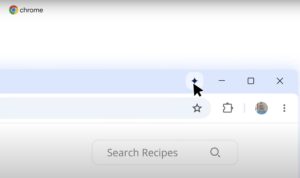
Source: Google
-
-
Pin the Gemini icon for quick access by clicking the Extensions icon (puzzle piece) and selecting “Pin” next to Gemini Side Panel.
-
First-time users: Click the Gemini icon, review the setup window, and opt in by selecting “Yes, I’m in.”
-
-
Use Keyboard Shortcuts:
-
Set up a custom shortcut (e.g., Ctrl+Shift+G) in Chrome Settings > Keyboard Shortcuts for faster access.
-
-
Alternative Access:
-
Type “@gemini” in the Chrome address bar (Omnibox), press Tab, and enter your query to start a chat via the Gemini web app. This doesn’t share page content like the toolbar version but is available to all users with a Google account.
-
If you don’t see Gemini yet, ensure Chrome’s language is set to English (U.S.) via Settings > Languages. Non-subscribers can join the Chrome Beta channel or wait for the wider rollout expected in late 2025. Google’s phased approach ensures stability, so your patience will pay off.
How to Utilize Gemini in Chrome
Gemini in Chrome acts as a context-aware AI assistant, enhancing your browsing with these key features:
-
Summarize Web Pages: Ask Gemini to distill articles, blog posts, or threads into key takeaways. For example, it can summarize a 2,000 word tech review into a 100-word overview, saving you time.
-
Clarify Concepts: Struggling with jargon on a webpage? Ask, “What does this term mean?” Gemini uses the page’s content to explain, ideal for students or professionals tackling dense topics.
-
Answer Questions: Query Gemini about page content, like “Is this sleeping bag good for Maine camping?” It pulls details from the page and web to provide tailored answers, as demoed at Google I/O
-
Compare Products: Open multiple tabs (future feature, expected late 2025) and ask Gemini to create comparison tables, e.g., for laptops or vacation plans.
-
Navigate Pages: Use Gemini Live (voice mode) to scroll to specific sections, like recipe ingredients, or convert measurements (e.g., cups to grams).
Example Use Cases:
-
Students: Generate pop quizzes from a study guide webpage or summarize research papers.
-
Shoppers: Compare product specs across tabs or check suitability for your needs.
-
Professionals: Draft emails or analyze reports by asking Gemini to extract key data.
To use Gemini, click the toolbar icon to open a floating chat window, type or speak (via Gemini Live), and share the current page by clicking “Share current page” (indicated by a blue glow around the tab). Stop sharing via Chrome Settings or the chat window to protect privacy.
Gemini in Chrome boosts productivity and learning:
-
Time-Saving: Summaries and quick answers cut research time, with 68% of early users reporting faster workflows, per Google’s internal data.
-
Contextual Help: Answers are grounded in the page’s content, reducing tab-switching.
-
Accessibility: AI-generated image descriptions enhance browsing for visually impaired users.
-
Versatility: From shopping to studying, Gemini adapts to diverse tasks, with future multi-tab support promising even more power.
For FOMO-driven users, Gemini’s seamless integration makes you feel ahead of the curve, turning Chrome into a smarter, more intuitive tool.
Fact-Checking and AI Limitations
While Gemini in Chrome is powerful, it’s not infallible. AI can “hallucinate” incorrect information or misinterpret page content, especially for complex or ambiguous queries. Here’s how to use it cautiously:
-
Fact-Check Responses: Cross-reference Gemini’s answers with primary sources, like official websites or academic papers. For example, if Gemini summarizes a news article, verify key claims with the original source.
-
Verify Critical Info: Don’t rely solely on Gemini for financial, medical, or legal advice. Consult experts or authoritative sites (e.g., CDC, IRS).
-
Check Source Context: Gemini uses the current page and web data, but it may miss nuances. If a page is outdated, Gemini’s response may be too.
-
Report Errors: If you spot inaccuracies, use Chrome’s feedback form (Help > Report an Issue) to improve Gemini.
-
Privacy Awareness: Sharing page content sends data to Google’s servers. Avoid sharing sensitive pages (e.g., banking) and stop sharing via Settings when done.
30% of AI-generated responses in 2024 contained minor errors, so skepticism is key. Always double-check & have your critical thinking cap on, especially for high-stakes decisions.
Get Started with Gemini in Chrome
Don’t let FOMO hold you back—Gemini in Chrome is worth the hype, but it’s rolling out gradually to ensure quality. Check your eligibility, update Chrome, and enable the Gemini Side Panel to dive in. Use it to summarize, clarify, or compare, but always fact-check to stay safe.
Gemini in Chrome is part of Google’s push to embed AI across its ecosystem, competing with Microsoft’s Copilot and OpenAI’s ChatGPT. With Chrome’s 3.4 billion users, this integration could make AI a default browsing tool, boosting productivity but raising privacy and accuracy concerns.
About the Author: Aditi Sharma

Disclaimer
Techizta publishes content submitted by third-party agencies, partners, and clients. Any such posts are categorized and tagged accordingly:
- Sponsored Content: Posts labeled as "Sponsored" are paid placements submitted by third-party agencies or clients. Techizta does not endorse or express any views regarding the information contained in these posts. The opinions expressed belong solely to the respective authors and do not reflect the official policy or position of Techizta.
- Press Releases: Posts labeled as "Press Release" are paid PR submissions provided by our partners and clients. These are published as received and should be considered as promotional content.
The information provided in such posts is strictly for informational purposes only and should not be interpreted as buying recommendation, or professional advice. Techizta does not recommend, endorse, or promote any specific products, services, or companies mentioned. Readers are strongly encouraged to conduct independent research and consult with a qualified professional before making any decisions.
Additionally, all featured images accompanying such posts are intended as creative depictions of the subject matter. There is no intent to offend or misrepresent any individual, institution, or entity. If any content or imagery is found to be objectionable, please reach out to us at [email protected], and we will promptly review the concern.



Get Smart Insights In Inbox
Stay ahead of the curve with expert analysis and latest smart tech updates.
