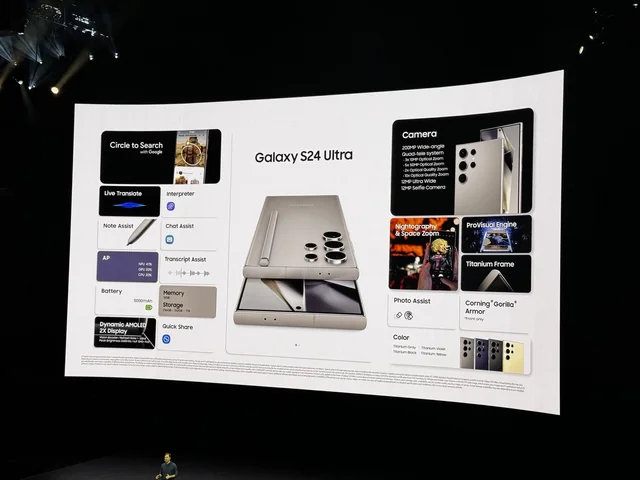
Top 5 AI Features of the Samsung Galaxy S24 Ultra
The Samsung Galaxy S24 Ultra is a flagship smartphone that leverages advanced artificial intelligence (AI) to enhance user experience. These AI features simplify tasks, boost productivity, and offer innovative ways to interact with your device. Below, we explore the top five AI features that make the Galaxy S24 Ultra a standout choice for tech enthusiasts and everyday users.
Also read: Top 10 Mother’s Day Gift Ideas for 2025: Thoughtful Gadgets to Show Mom You Care
Key Points
-
Circle to Search enables intuitive searches by circling on-screen content.
-
Live Translate facilitates real-time communication across languages.
-
Generative Photo Editing offers professional-level image editing.
-
Note Assist streamlines note-taking with summarization and translation.
-
Browsing Assist summarizes lengthy online articles for quick reading.
The Samsung Galaxy S24 Ultra, released in early 2024, is a flagship smartphone that redefines mobile technology through its integration of advanced artificial intelligence (AI). These AI features, collectively known as Galaxy AI, are designed to enhance productivity, creativity, and connectivity, making the device a compelling choice for tech enthusiasts, professionals, and casual users alike. In this comprehensive guide, we delve into the top five AI features that distinguish the Galaxy S24 Ultra, providing detailed insights into how they work, their practical applications, and how they compare to similar functionalities on other devices. Each feature is supported by official Samsung resources to ensure accuracy and reliability.
Get discounted by of Samsung Galaxy S24 Ultra here.
Circle to Search: Instant Information Retrieval
Circle to Search is a groundbreaking feature that allows users to search for information about anything displayed on their screen with a simple gesture. By circling an object, text, or part of a video using the S Pen or a finger, the Galaxy S24 Ultra leverages AI to analyze the selection and provide relevant Google Search results instantly.
-
How It Works: When you encounter an item of interest—such as a product in a photo or a phrase in a video—activate Circle to Search, draw a circle around it, and the AI processes the content to deliver search results without requiring manual text input or screenshots.
-
Why It’s Useful: This feature streamlines the search process, making it ideal for quick lookups while browsing social media, watching videos, or reading articles. It’s particularly valuable for users who need instant information without disrupting their workflow.
-
Comparison: Unlike traditional search methods that require copying text or saving images, Circle to Search offers a more intuitive and efficient approach. While some devices offer screen-based search tools, the gesture-based interaction of Circle to Search is unique and user-friendly.
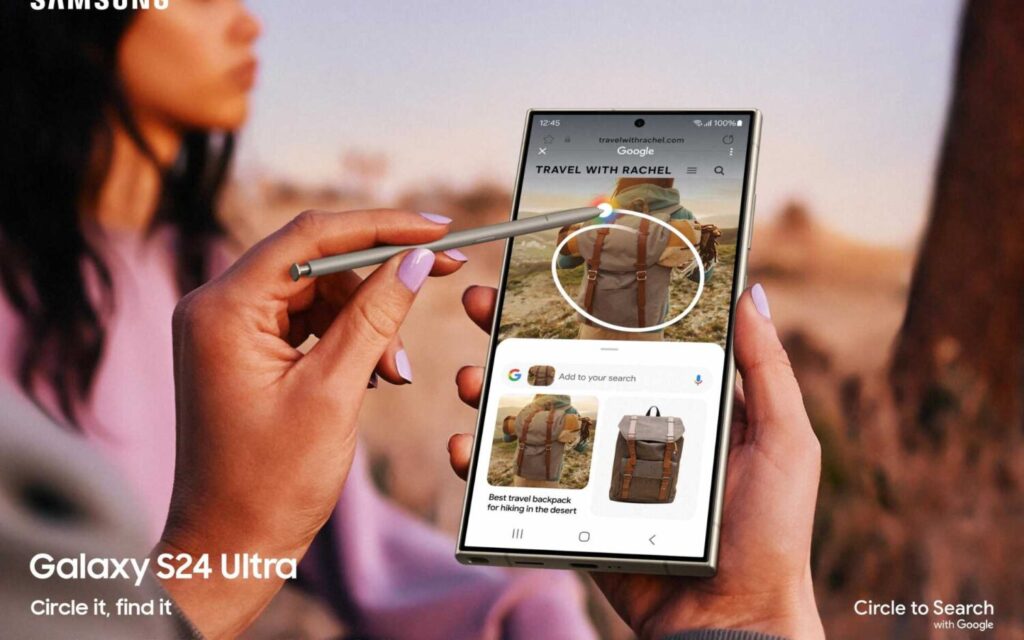
To access the “Circle to Search” feature on your Samsung Galaxy S24 Ultra, follow these simple steps:
1. Ensure the Feature is Enabled
Before using “Circle to Search,” confirm it’s activated on your device:
- Go to Settings.
- Scroll to Advanced features.
- Find Circle to Search and ensure the toggle is switched on.
2. Using the Feature
Once enabled, here’s how to use it:
- Open the content you want to search—such as an image, text, or video.
- Press and hold the Home button (or the S Pen button if you’re using the S Pen).
- Draw a circle around the item or text you want to search for using your finger or S Pen.
- The AI will analyze the circled content and display Google Search results instantly.
Tips for Best Results
- Draw a clear circle that fully surrounds the content.
- For text, ensure it’s legible and not blurry.
- If searching in a video, pause it first to circle the desired frame.
Troubleshooting
If the feature doesn’t work:
- Check for the latest software update in Settings > Software update.
- Ensure the content or app you’re using supports this feature.
With these steps, you can easily access and use “Circle to Search” to explore anything on your screen!
Live Translate: Breaking Language Barriers
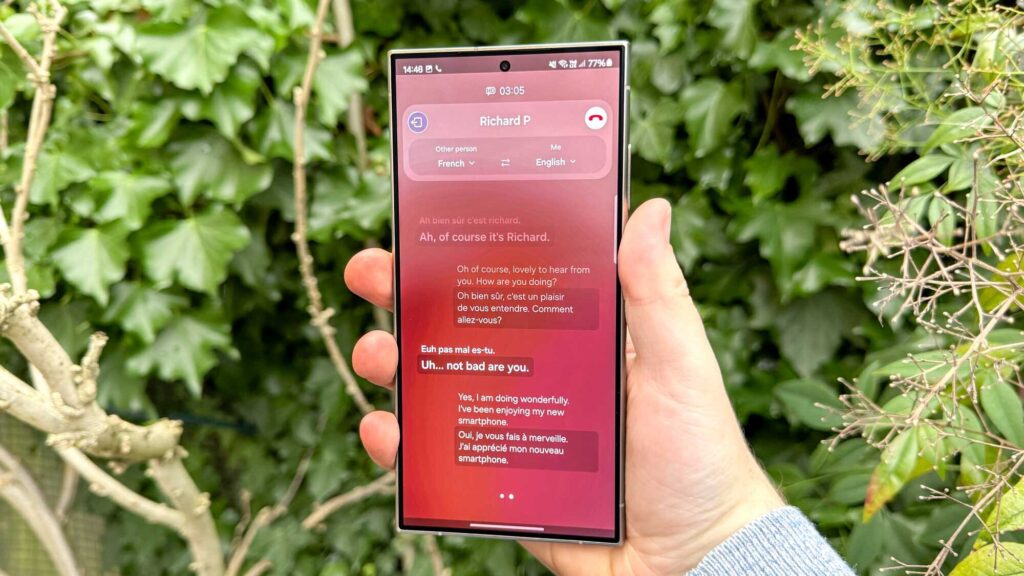
Live Translate is a powerful AI feature that facilitates real-time translation during phone calls and in-person conversations, effectively breaking down language barriers. It supports 13 languages, including English, Spanish, and Chinese, with more expected to be added.
-
How It Works: During a phone call, Live Translate translates spoken words into the user’s preferred language and vice versa in near real-time, displaying the translated text on-screen. For in-person interactions, users can use the camera to translate text (e.g., menus or signs) or the microphone for voice translation.
-
Why It’s Useful: This feature is invaluable for travelers, business professionals, or anyone engaging in multilingual communication. It eliminates the need for separate translation apps, offering a seamless experience integrated into the phone’s native apps.
-
Comparison: While other smartphones provide translation capabilities through apps like Google Translate, Live Translate’s integration into the Samsung Phone app and its support for both voice and text translation make it more accessible and versatile.
How to Use the “Live Translate” Feature
1. Ensure the Feature is Enabled
Before you start, confirm that “Live Translate” is turned on:
- Open Settings.
- Navigate to Advanced features.
- Locate Live Translate and toggle it on.
2. Using “Live Translate” During a Phone Call
To translate conversations in real-time during a call:
- Start or answer a phone call.
- Look for the Live Translate icon on the call screen and tap it.
- Choose the languages—yours and the caller’s.
- The AI will instantly translate spoken words, showing the text on your screen.
3. Using “Live Translate” for In-Person Conversations
For face-to-face talks or translating text:
- Launch the Camera or Microphone app.
- Enable Live Translate from the app’s menu.
- For text (like signs or menus), point the camera at it. For speech, use the microphone.
- The translation will appear on-screen automatically.
Tips for Best Results
- Speak clearly and at a normal speed for accurate translations.
- When using the camera, ensure the text is well-lit and in focus.
- Wear headphones during calls to improve audio quality.
Troubleshooting
If “Live Translate” isn’t working:
- Go to Settings > Software update and install any available updates.
- Verify the languages are supported (13 languages are available as of now).
- Restart your device if the feature freezes or fails to respond.
Generative Photo Editing: Transform Your Images
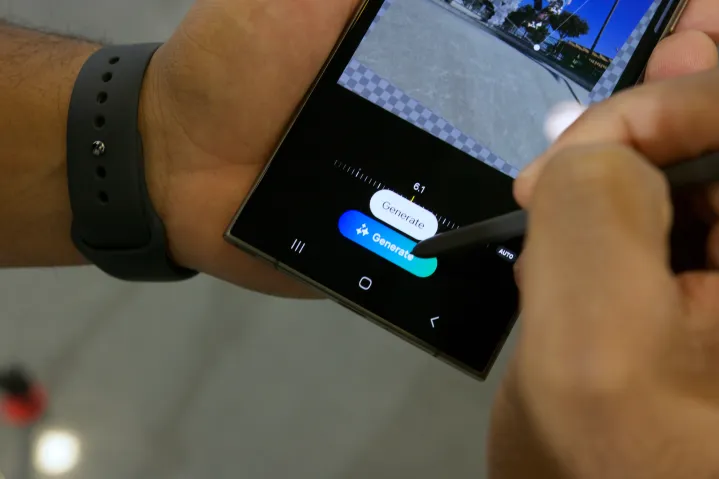
Generative Photo Editing empowers users to transform their photos using AI-driven tools that rival professional editing software. This feature allows users to resize, remove, or reposition objects within an image, with the AI regenerating the background to maintain a natural appearance.
-
How It Works: Select an object in a photo, such as a person or item, and adjust its position, size, or orientation using intuitive controls. The AI analyzes the image and generates the necessary pixels to fill in gaps, ensuring the edit looks seamless.
-
Why It’s Useful: Generative Photo Editing is perfect for social media users, photographers, or anyone looking to enhance their images without advanced editing skills. It simplifies complex edits, such as removing unwanted objects or expanding backgrounds.
-
Comparison: While other smartphones offer basic photo editing tools, Generative Photo Editing’s ability to intelligently regenerate image content sets it apart. It competes with desktop software like Adobe Photoshop but is more accessible on a mobile device.
How to Use “Generative Photo Editing”
1. Access the Feature
- Open your photo gallery or editing app on your device.
- Select the photo you want to edit.
- Tap the Edit option (often a pencil icon or similar).
- Look for the Generative Editing button or menu in the editing tools and tap it.
2. Select and Edit
- Use your finger or a stylus to select an area or object in the photo you want to edit.
- Depending on the tool, you can:
- Remove objects (e.g., draw around something to delete it).
- Change the background (e.g., select the background and pick a new one).
- Enhance details (e.g., adjust lighting or sharpness).
- Be precise with your selections for the best outcome—zoom in if needed.
3. Let the AI Work
- After making your edit, the AI will generate new content to fill in the edited areas, blending it with the rest of the photo.
- Note that results may vary—simple edits often look seamless, while complex changes might not always be perfect.
4. Review and Save
- Check the result. If you’re not happy, undo the edit and try again with a different selection.
- Once satisfied, save your edited photo. Consider keeping the original photo as a backup.
Tips for Success
- Experiment: Start with small edits (like removing a single object) to get comfortable with the feature.
- Precision matters: The more accurate your selection, the better the AI’s results.
- Patience: If the first edit isn’t ideal, tweak your approach and try again.
Note Assist: Smarter Note-Taking
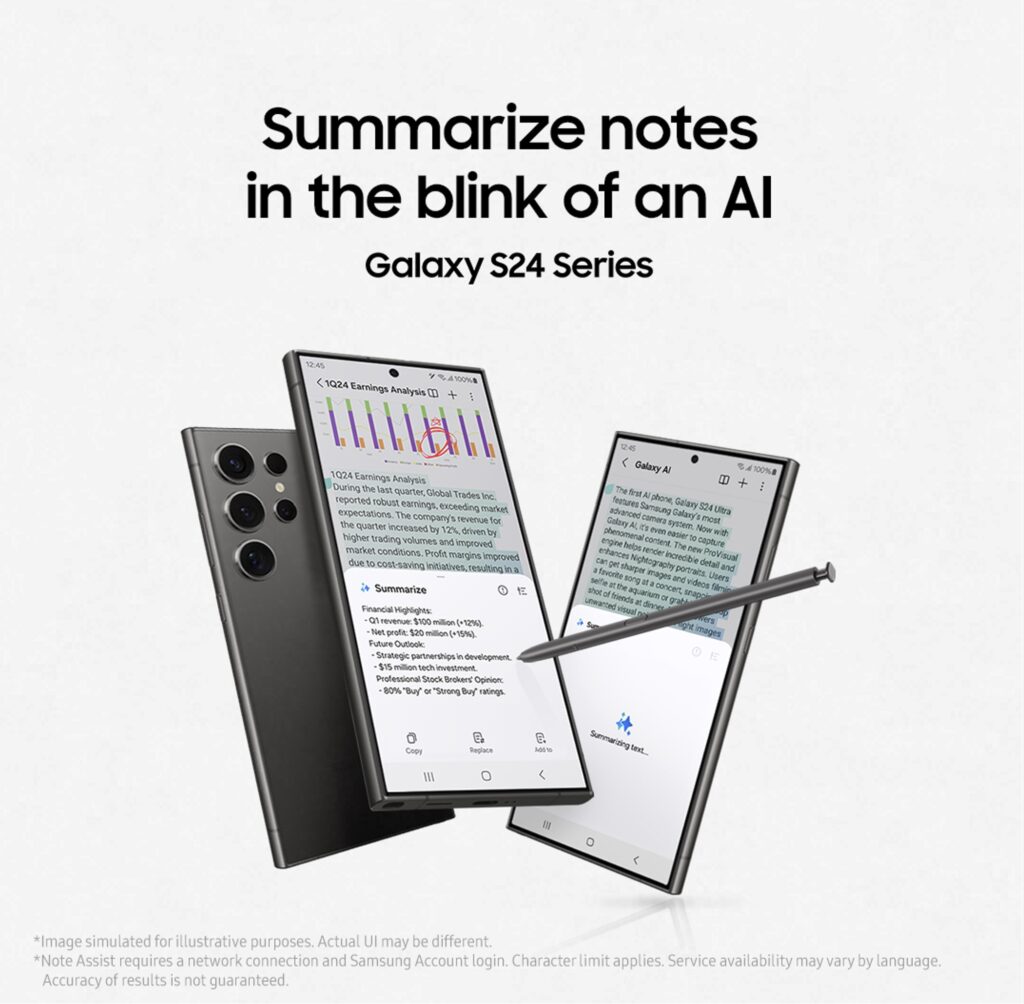
Note Assist enhances the note-taking experience within the Samsung Notes app by offering AI-powered features like summarization, template creation, and translation. It’s particularly useful for users who rely on handwritten or typed notes for work or study.
-
How It Works: Write or type notes as usual, and Note Assist can automatically summarize lengthy content, organize it into templates with headers and bullet points, or translate it into another language. It also straightens handwritten notes taken with the S Pen for improved readability.
-
Why It’s Useful: This feature saves time and improves organization, making it ideal for students, professionals, or anyone managing large amounts of information. The summarization and translation capabilities are especially valuable for multilingual users or those handling complex projects.
-
Comparison: Compared to basic note-taking apps, Note Assist offers advanced AI-driven organization and multilingual support. While other devices may provide similar features, the integration with the S Pen and Samsung Notes provides a more cohesive experience.
Browsing Assist: Quick Content Summaries
Browsing Assist simplifies the consumption of online content by generating concise summaries of lengthy articles and webpages within the Samsung Internet app. This feature helps users stay informed without spending excessive time reading.
-
How It Works: When browsing a long article, activate Browsing Assist to generate a summary that highlights the key points. The AI analyzes the content and presents a digestible overview, allowing users to decide whether to read the full article.
-
Why It’s Useful: This feature is a time-saver for busy individuals, researchers, or anyone who needs to process large amounts of information quickly. It’s particularly effective for staying updated on news or industry trends.
-
Comparison: While some browsers offer reader modes or summarization extensions, Browsing Assist’s native integration into the Samsung Internet app ensures a seamless experience. It’s more streamlined than third-party tools and tailored to mobile use.
Additional AI Features
Beyond the top five, the Galaxy S24 Ultra offers other notable AI features that enhance its functionality:
-
AI Zoom: Enhances zoomed-in photos up to 100x by reducing shake, noise, and pixelization, leveraging the ProVisual Engine and Adaptive Pixel Sensor.
-
Chat Assist: Adjusts the tone and corrects spelling/grammar in messages to ensure effective communication.
-
Transcript Assist: Converts voice recordings into text, identifies speakers, and supports translation, ideal for meetings or interviews.
-
Photo Editing Suggestions: Provides instant AI-driven recommendations for improving photos, such as removing reflections.
-
Generative Wallpapers: Creates unique, AI-generated wallpapers for personalized device aesthetics.
-
Instant Slow-Mo: Transforms regular videos into slow-motion clips using AI processing.
These features collectively contribute to the Galaxy S24 Ultra’s reputation as an AI powerhouse, offering tools for diverse use cases.
Why These Features Matter
The AI features of the Galaxy S24 Ultra are not just technological novelties; they address real-world needs by simplifying tasks and enhancing user capabilities. For example, Circle to Search caters to the fast-paced nature of modern information consumption, while Live Translate supports global connectivity. Generative Photo Editing and Note Assist empower creativity and productivity, and Browsing Assist aligns with the need for efficient information processing. Together, these features make the Galaxy S24 Ultra a versatile device that adapts to various lifestyles.
Comparison to Competitors
The Galaxy S24 Ultra’s AI features are competitive with those of other flagship smartphones, such as the iPhone 15 Pro and Google Pixel 8 Pro. While Apple’s Siri and Google’s Assistant offer robust AI capabilities, Samsung’s Galaxy AI stands out for its deep integration into native apps like Samsung Notes, Samsung Internet, and the Phone app. The S Pen compatibility further enhances features like Circle to Search and Note Assist, providing a unique advantage for users who prefer stylus-based interactions.
Limitations and Considerations
While these AI features are impressive, some have limitations. For instance, Generative Photo Editing requires an internet connection for certain functions, and Live Translate’s language support is currently limited to 13 languages, though Samsung plans to expand this. Users should also be aware that some features, like Note Assist, have character limits for summarization, and editing results in Generative Photo Editing may vary based on image complexity.
Conclusion
The Samsung Galaxy S24 Ultra sets a new standard for smartphones by integrating advanced AI features that enhance everyday tasks and unlock new possibilities. From the intuitive Circle to Search to the productivity-boosting Note Assist, these tools demonstrate Samsung’s commitment to user-centered innovation. Whether you’re a professional seeking efficiency, a creative looking to enhance your work, or a global traveler needing seamless communication, the Galaxy S24 Ultra delivers a transformative experience.
Note: Information is based on official Samsung sources and reputable tech reviews as of May 1, 2025. For the latest details, visit Samsung’s official website.
About the Author: Editor's Desk

Disclaimer
Techizta publishes content submitted by third-party agencies, partners, and clients. Any such posts are categorized and tagged accordingly:
- Sponsored Content: Posts labeled as "Sponsored" are paid placements submitted by third-party agencies or clients. Techizta does not endorse or express any views regarding the information contained in these posts. The opinions expressed belong solely to the respective authors and do not reflect the official policy or position of Techizta.
- Press Releases: Posts labeled as "Press Release" are paid PR submissions provided by our partners and clients. These are published as received and should be considered as promotional content.
The information provided in such posts is strictly for informational purposes only and should not be interpreted as buying recommendation, or professional advice. Techizta does not recommend, endorse, or promote any specific products, services, or companies mentioned. Readers are strongly encouraged to conduct independent research and consult with a qualified professional before making any decisions.
Additionally, all featured images accompanying such posts are intended as creative depictions of the subject matter. There is no intent to offend or misrepresent any individual, institution, or entity. If any content or imagery is found to be objectionable, please reach out to us at [email protected], and we will promptly review the concern.




Get Smart Insights In Inbox
Stay ahead of the curve with expert analysis and latest smart tech updates.