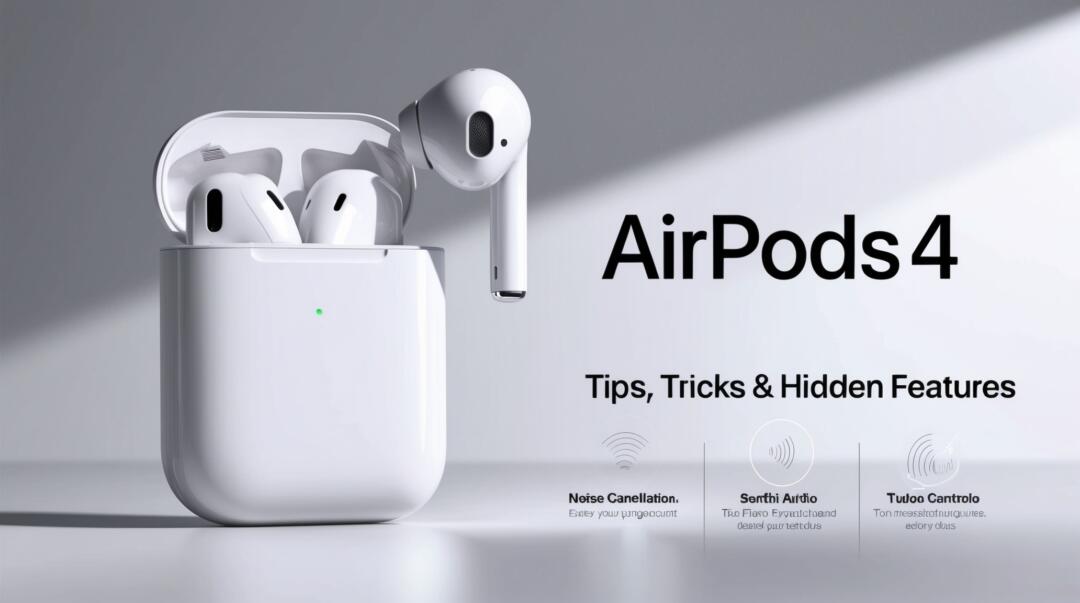
AirPods 4 Tips, Tricks & Hidden Features You Must Know!
The AirPods 4 are not just about great sound; they come packed with features that can enhance your listening experience. From hidden buttons to unique gestures, these earbuds have a lot to offer. Here’s a rundown of essential tips and tricks to help you get the most out of your AirPods 4.
Key Takeaways
- Double Tap for Pairing: Quickly connect to devices.
- Control Gestures: Use taps for calls and music.
- Noise Cancellation: Adjust settings for your environment.
- Find My AirPods: Use the app to locate lost earbuds.
- Personalized Audio: Enhance sound quality with settings.

Double Tap to Pair and Reset
One of the first things you should know is about the invisible button on the AirPods case. When you open the case, a quick double tap on this button will switch the light from green to white, putting your AirPods into pairing mode. This makes it super easy to connect to other devices like another iPhone, a laptop, or even a gaming console.
If you ever run into connection issues, you can reset your AirPods by tapping the button multiple times until you see a red light. This is a handy trick to keep in mind.
Control Gestures for Calls and Music
The AirPods 4 come with several control gestures that make using them a breeze:
- Single Press: Play/pause music or answer calls.
- Double Press: Skip to the next track or hang up a call.
- Triple Press: Go back to the previous track.
- Press and Hold: Activate noise cancellation.
You can customize these gestures in your settings, allowing you to tailor them to your preferences.
Volume Control Hacks
While the AirPods don’t have a direct volume control gesture, you can set up voice commands to adjust the volume. Here’s how:
- Go to Settings > Accessibility.
- Find Voice Control and turn it on.
- Add actions for volume up and down.
Now, just say “volume up” or “volume down” to adjust the sound without touching your device.
Head Gestures for Calls
This feature is pretty cool. You can answer calls by nodding your head and decline them by shaking your head. To set this up:
- Go to Settings > Siri.
- Tap on Announce Calls and set it to Headphones Only.
Now, Siri will announce who’s calling, and you can respond with a simple nod or shake.
Charging Tips
The AirPods 4 offer about 5 hours of battery life and can be charged multiple times with the case. Here are some charging tips:
- Charge with iPhone: Connect your iPhone to the AirPods case for a quick charge.
- Wireless Charging: Use a MagSafe charger, but keep in mind the magnets aren’t super strong. Consider getting a case with better magnets for easier charging.
Finding Your AirPods
Losing your AirPods can be a hassle, but the Find My app makes it easier:
- Use the Play Sound feature to ring your AirPods case.
- If you lose a single earbud, you can ring it directly through the app.
- Turn on Notify When Left Behind to get alerts if you leave them behind.
Enhancing Sound Quality
To make your AirPods sound even better, try these settings:
- Personalized Spatial Audio: Set this up in your settings to enhance sound quality based on your ear shape.
- Personalized Volume: This feature adjusts the volume based on your surroundings, ensuring optimal sound.
Hidden Features You Should Know
- Share Audio: You can share audio with another pair of AirPods. Just bring them close to your iPhone and follow the prompts.
- Live Listen: This feature lets you hear everything your iPhone hears through your AirPods. It’s great for discreet listening.
- Noise Cancellation: Switch between noise cancellation and transparency modes based on your environment. You can also enable Conversational Awareness to lower the volume when someone speaks to you.
Final Tips
- Change your AirPods name and add emojis for a personal touch.
- Set the microphone to always use one earbud for clearer calls in noisy environments.
- Turn on Sound Recognition for alarms and notifications, which can be a lifesaver in emergencies.
With these tips and tricks, you’ll be able to maximize your AirPods 4 experience. Whether it’s for music, calls, or just everyday use, these features can make a big difference. Happy listening!
About the Author: Editor's Desk

Disclaimer
Techizta publishes content submitted by third-party agencies, partners, and clients. Any such posts are categorized and tagged accordingly:
- Sponsored Content: Posts labeled as "Sponsored" are paid placements submitted by third-party agencies or clients. Techizta does not endorse or express any views regarding the information contained in these posts. The opinions expressed belong solely to the respective authors and do not reflect the official policy or position of Techizta.
- Press Releases: Posts labeled as "Press Release" are paid PR submissions provided by our partners and clients. These are published as received and should be considered as promotional content.
The information provided in such posts is strictly for informational purposes only and should not be interpreted as buying recommendation, or professional advice. Techizta does not recommend, endorse, or promote any specific products, services, or companies mentioned. Readers are strongly encouraged to conduct independent research and consult with a qualified professional before making any decisions.
Additionally, all featured images accompanying such posts are intended as creative depictions of the subject matter. There is no intent to offend or misrepresent any individual, institution, or entity. If any content or imagery is found to be objectionable, please reach out to us at [email protected], and we will promptly review the concern.



Get Smart Insights In Inbox
Stay ahead of the curve with expert analysis and latest smart tech updates.